Select Nth Edge/Face/Vert
The Select Every Nth pattern engine lets you generate non-destructive, mathematically precise component selection patterns (edges, faces, or vertices) along loops and rings—without relying on trial-and-error slider adjustments.
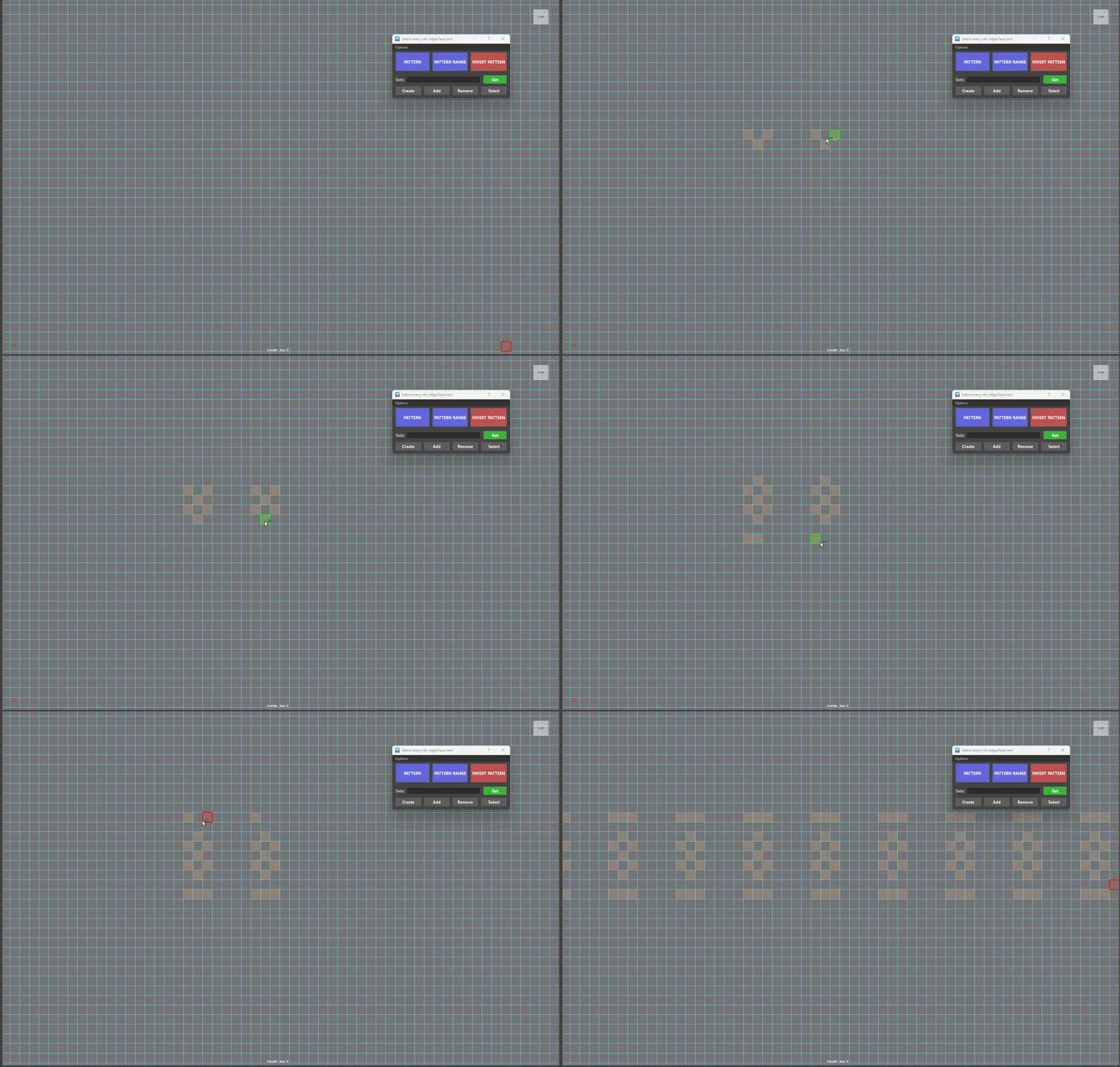
-
Unified Component Engine: Works natively across Edges, Faces, and Vertices using pure topology math—no selection state churn or viewport lag. -
Gap-Driven Spacing: The gap (distance) you leave between your 1st and 2nd selection dictates the stride/spacing for the entire pattern automatically. -
Multi-Loop & Multi-Object Support: Select pairs or triplets across multiple parallel loops or across separate polygonal meshes simultaneously. -
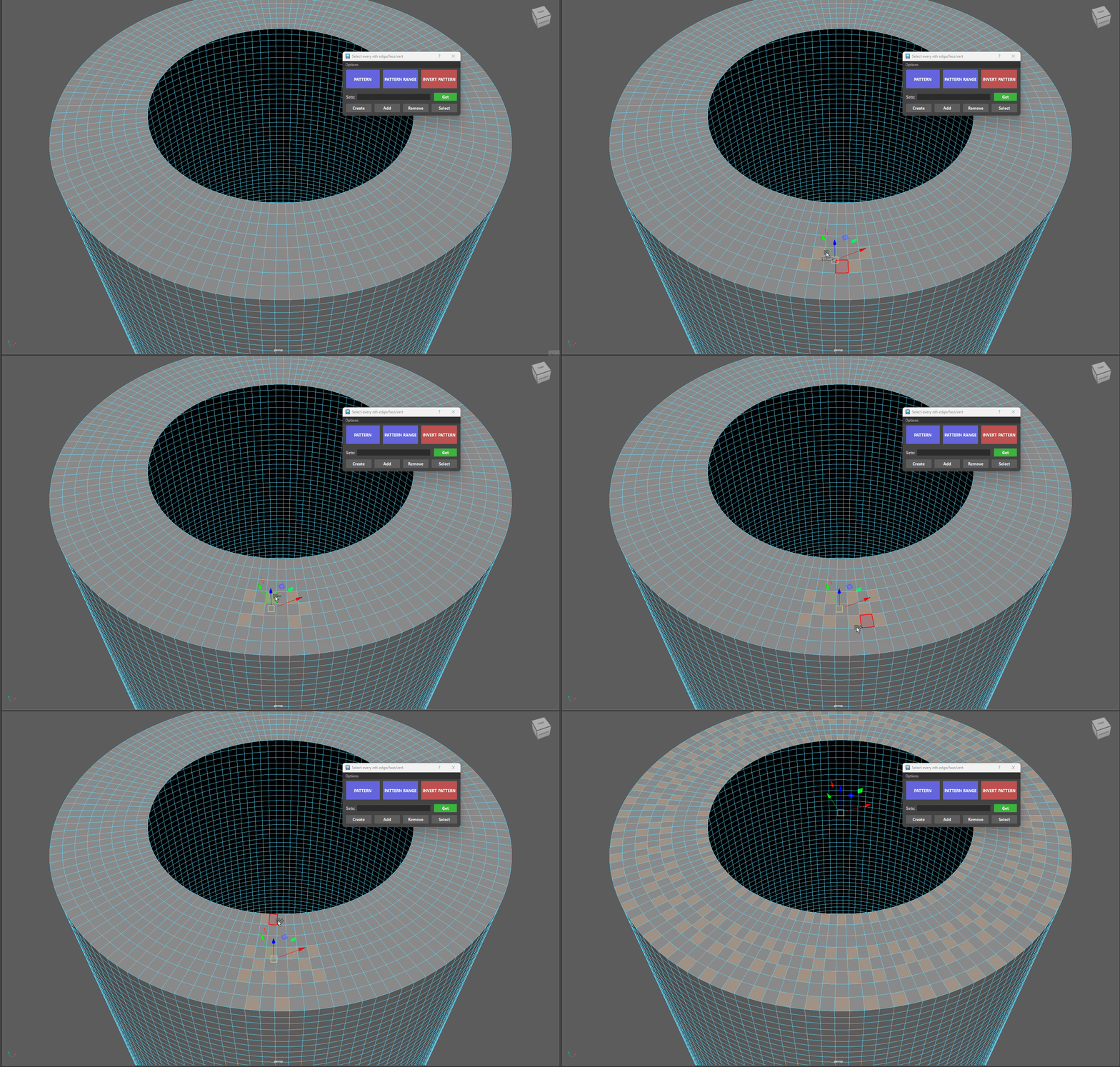
Lateral Extension (Ctrl + Click): Perform pattern operations on parallel loops (faces/verts) to extend patterns sideways across grid selections. -
Persistent Pattern Storage & Inversion: The tool caches your pattern data by mesh topology. Use INVERT PATTERN to flip the selection state within the loop area, or Ctrl + Click to reset the cached pattern.
PATTERN
Generates an infinitely repeating selection pattern along the entire loop or ring based on the distance between two components.
-
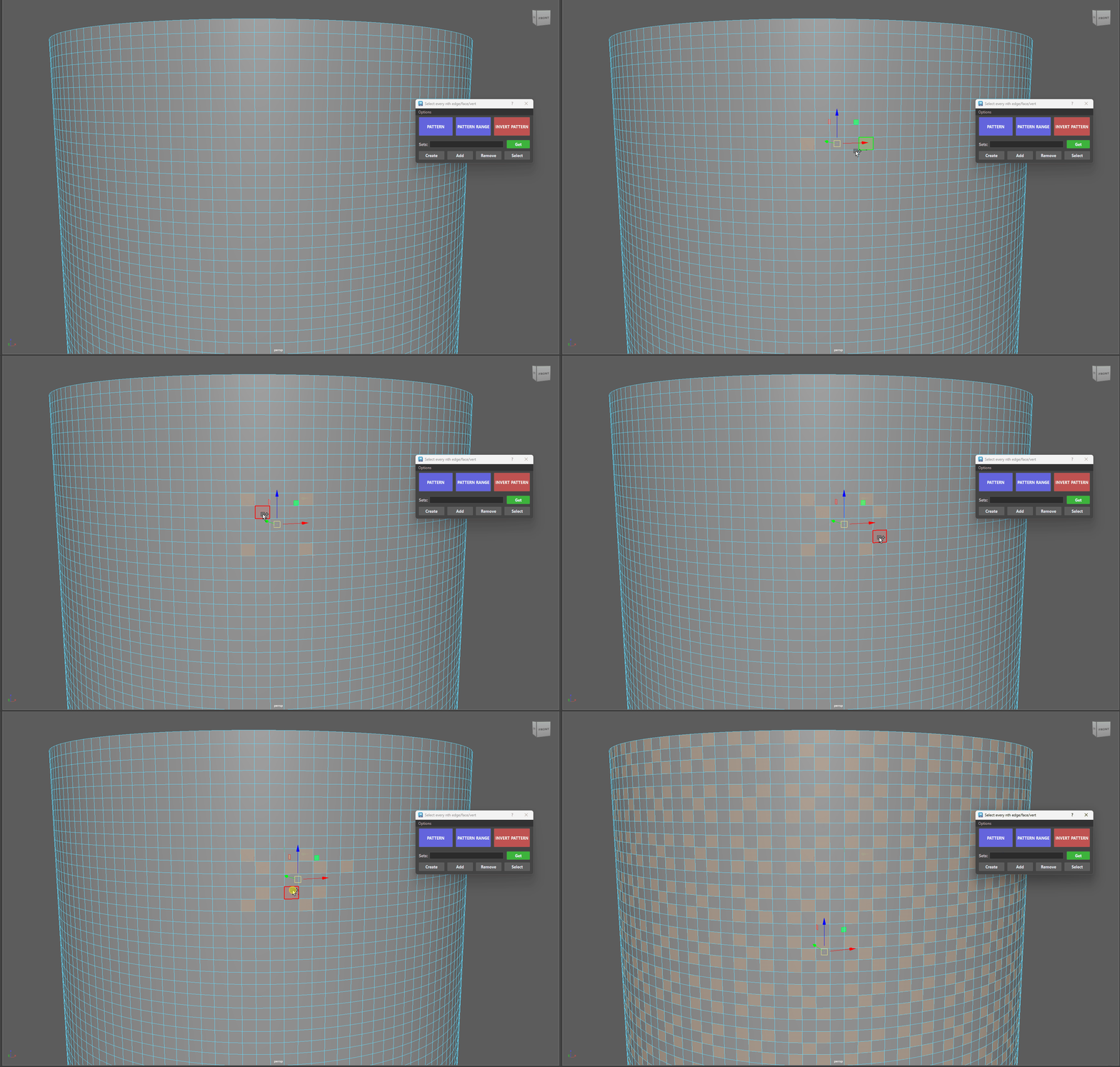
Select 2 components on a loop (or multiples of 2: 4, 6, 8, etc.).
-
1st Selection: Starting point.
-
2nd Selection: Sets the spacing/stride for the pattern (cannot be adjacent to your first selection).
-
Click PATTERN.
-
Rule: The total count of selected components must always be an even number (2, 4, 6...).
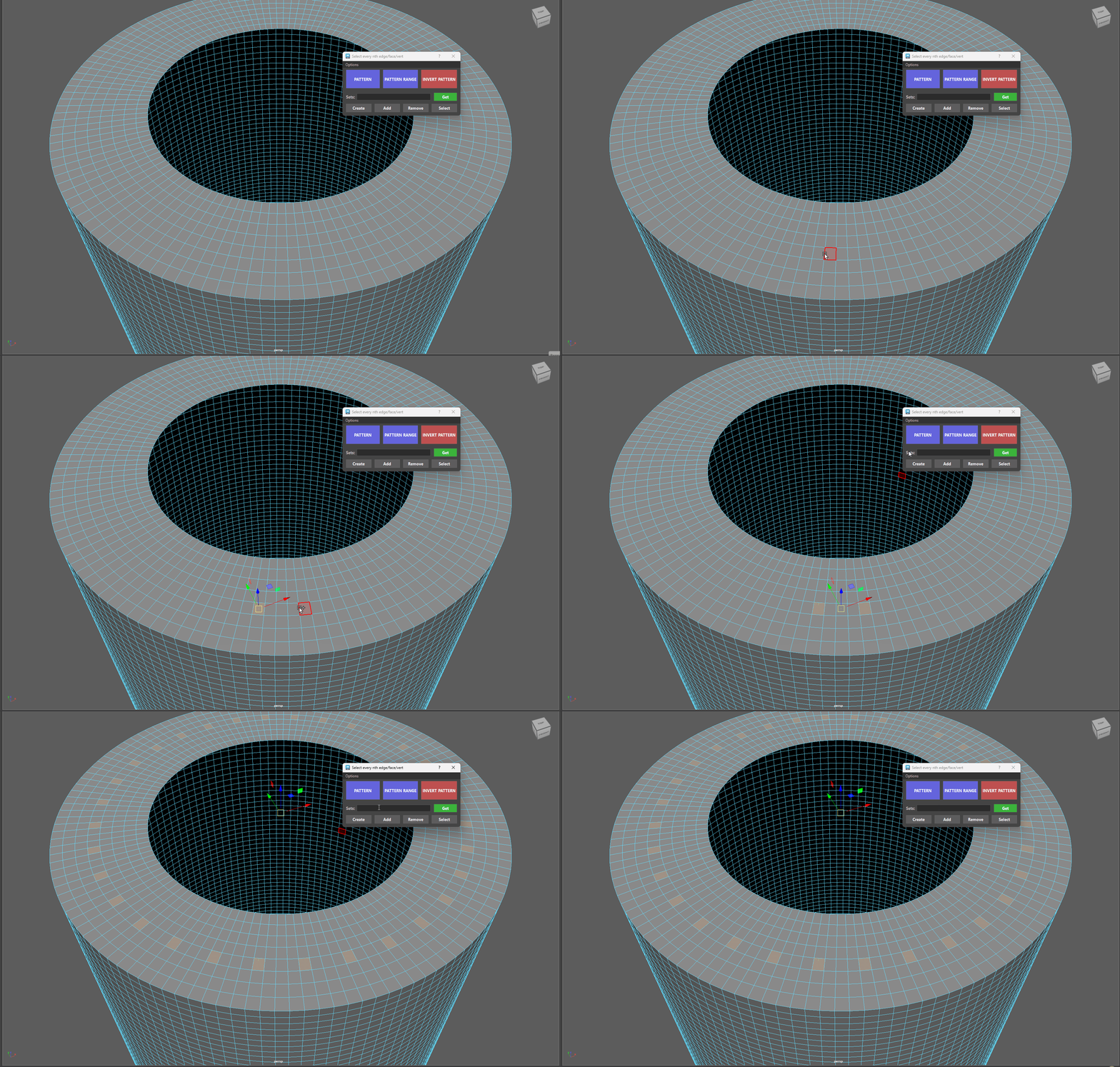
More examples - Patterns
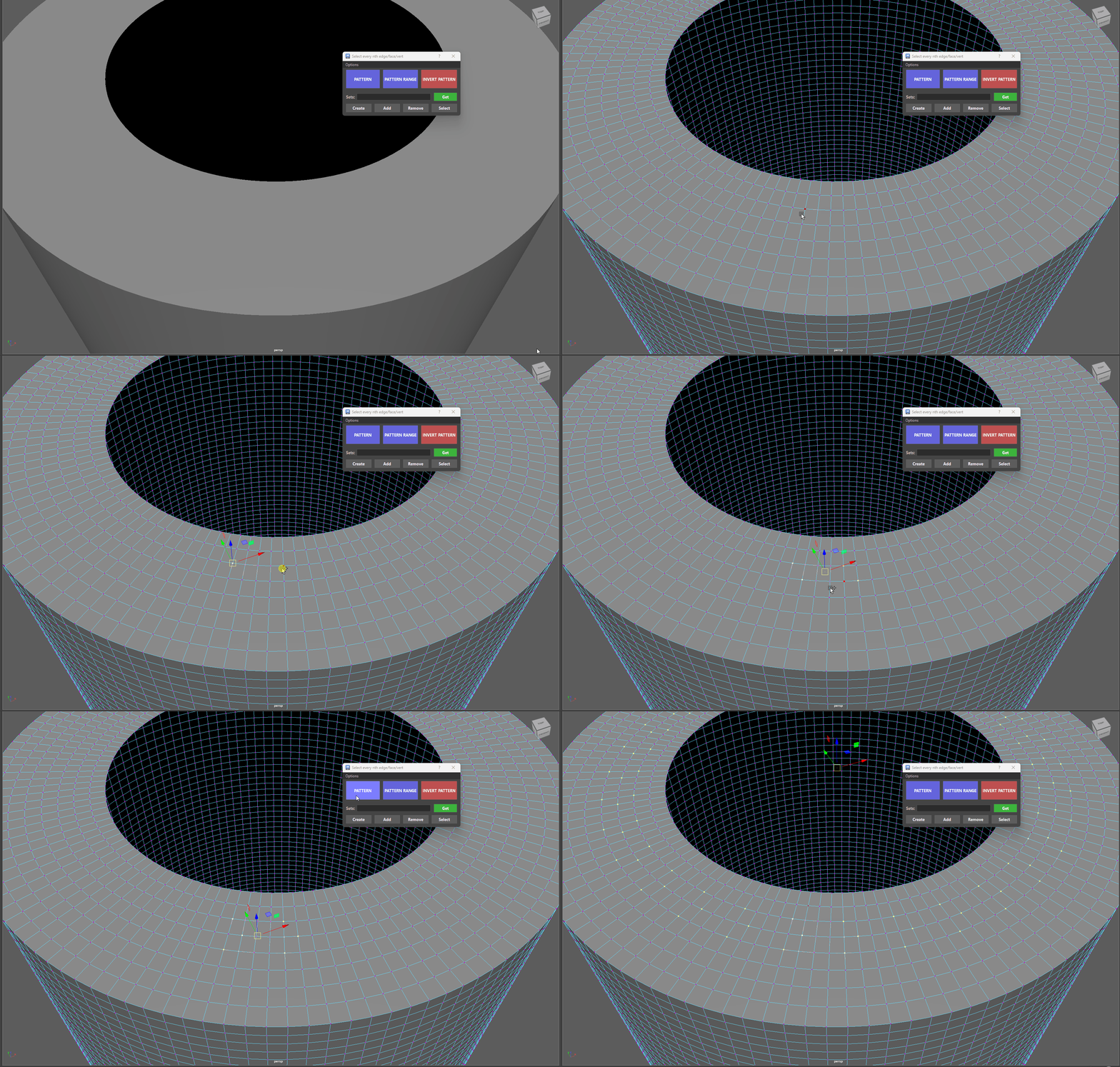
-
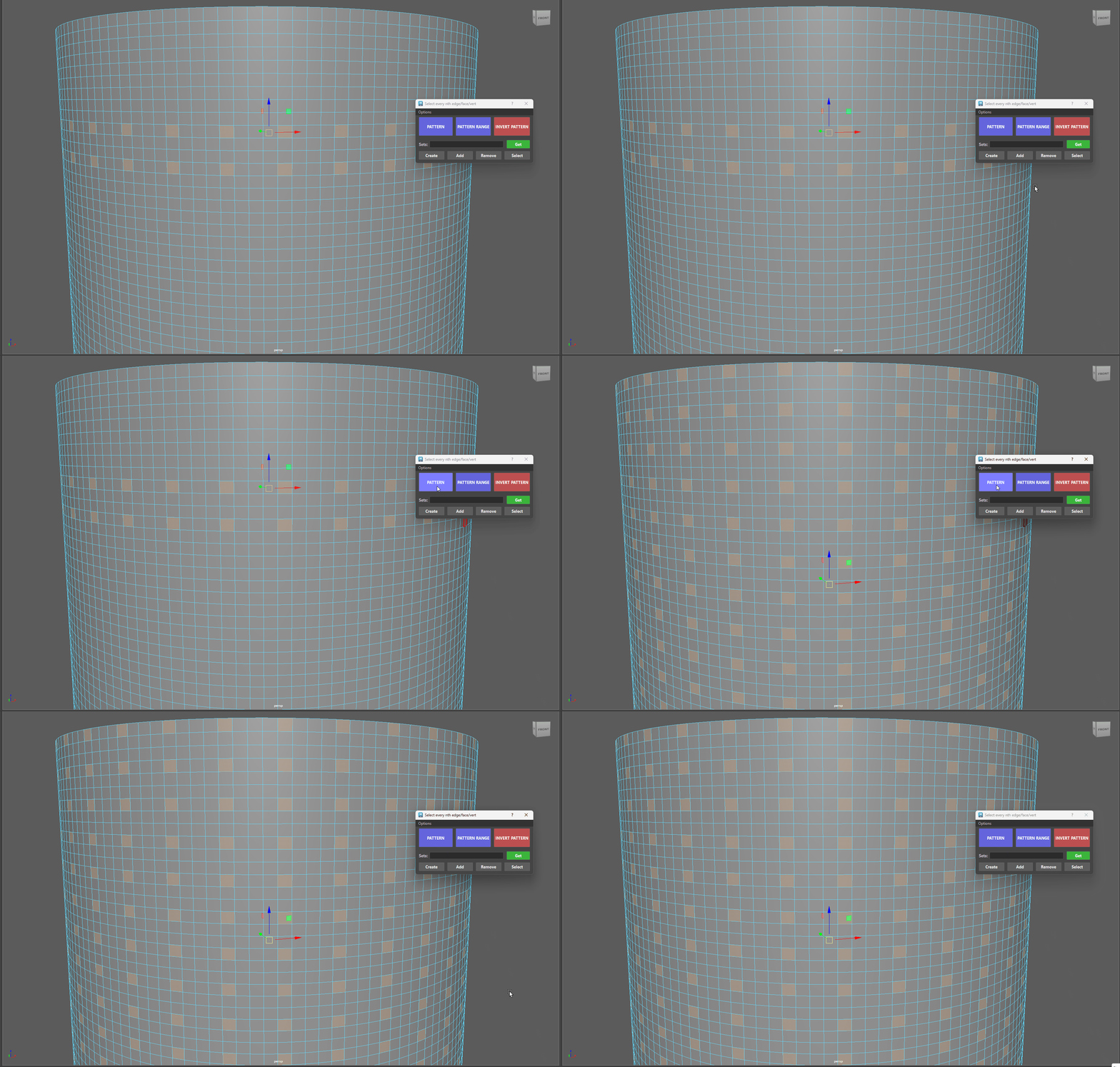
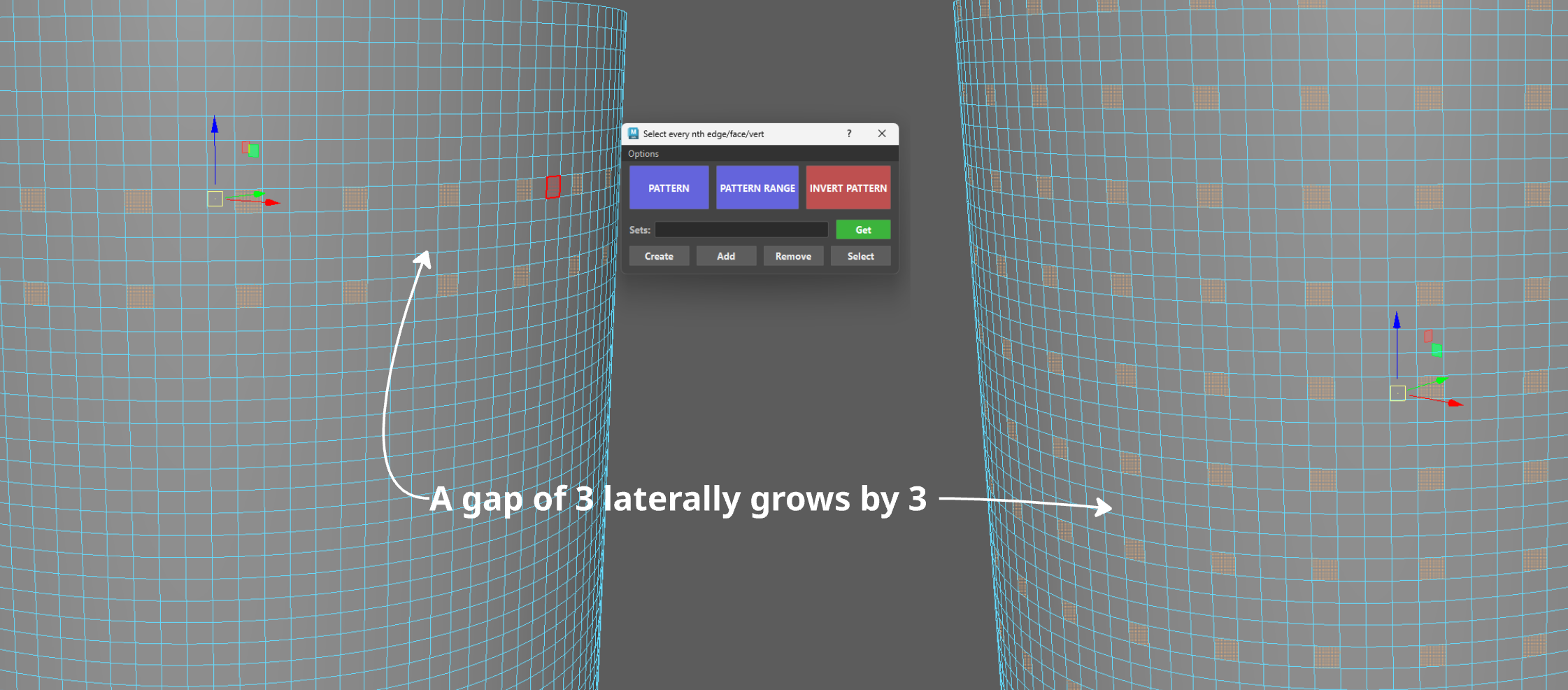
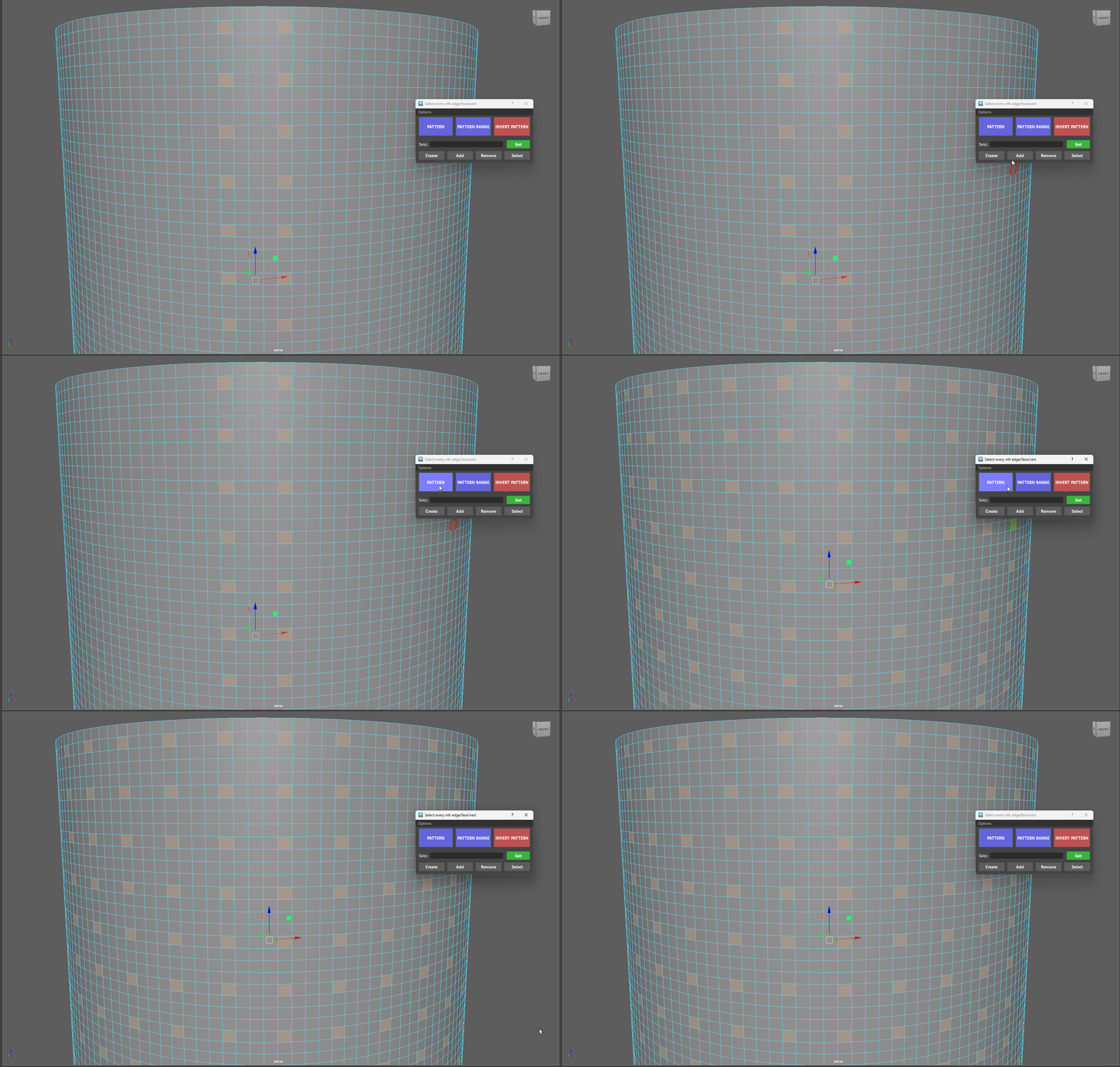
Lateral Extension (Ctrl + Click): Select pairs of parallel loops (Faces/Verts) with a gap, then Ctrl + Click PATTERN to extend the pattern laterally across the mesh surface.
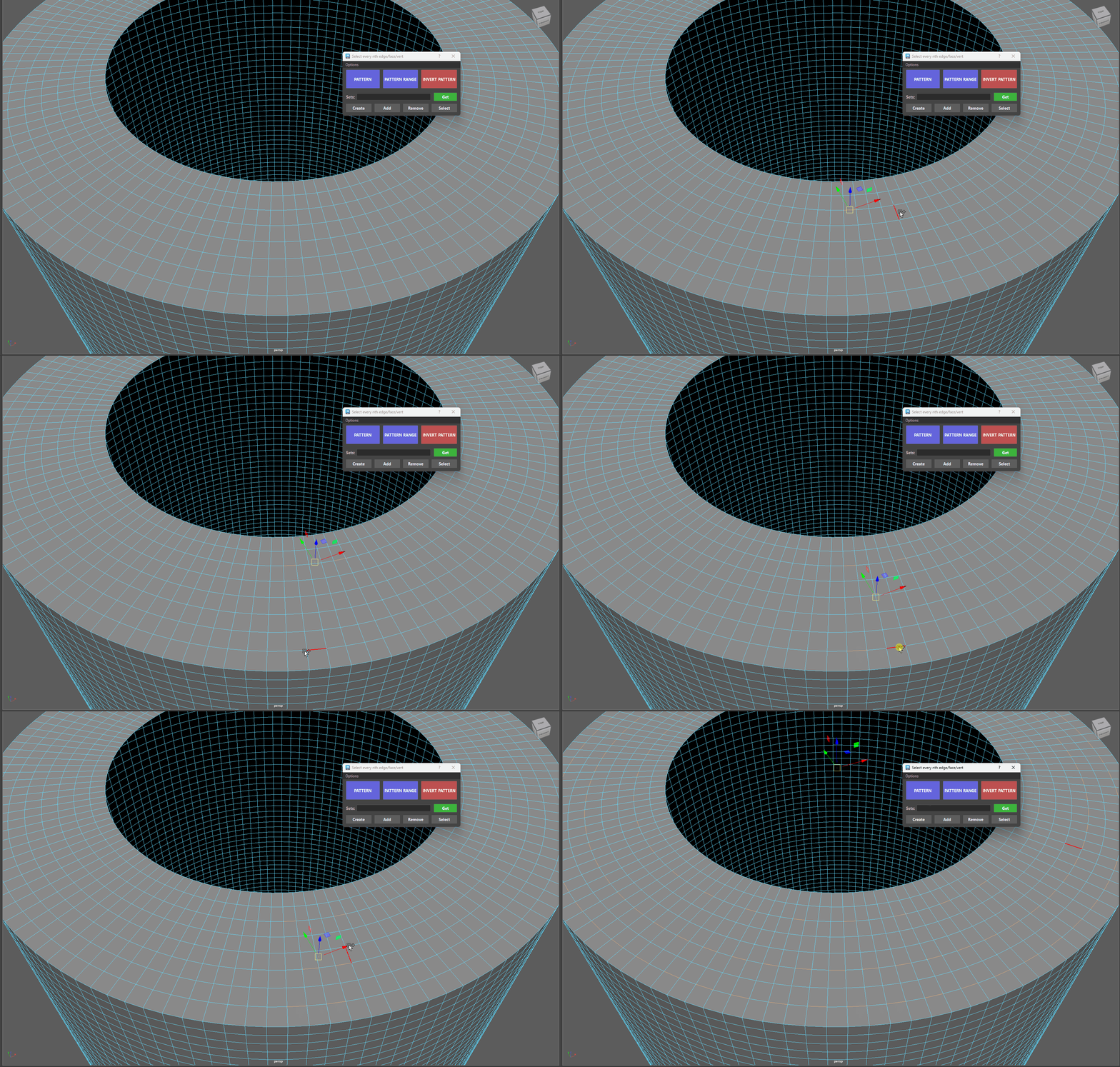
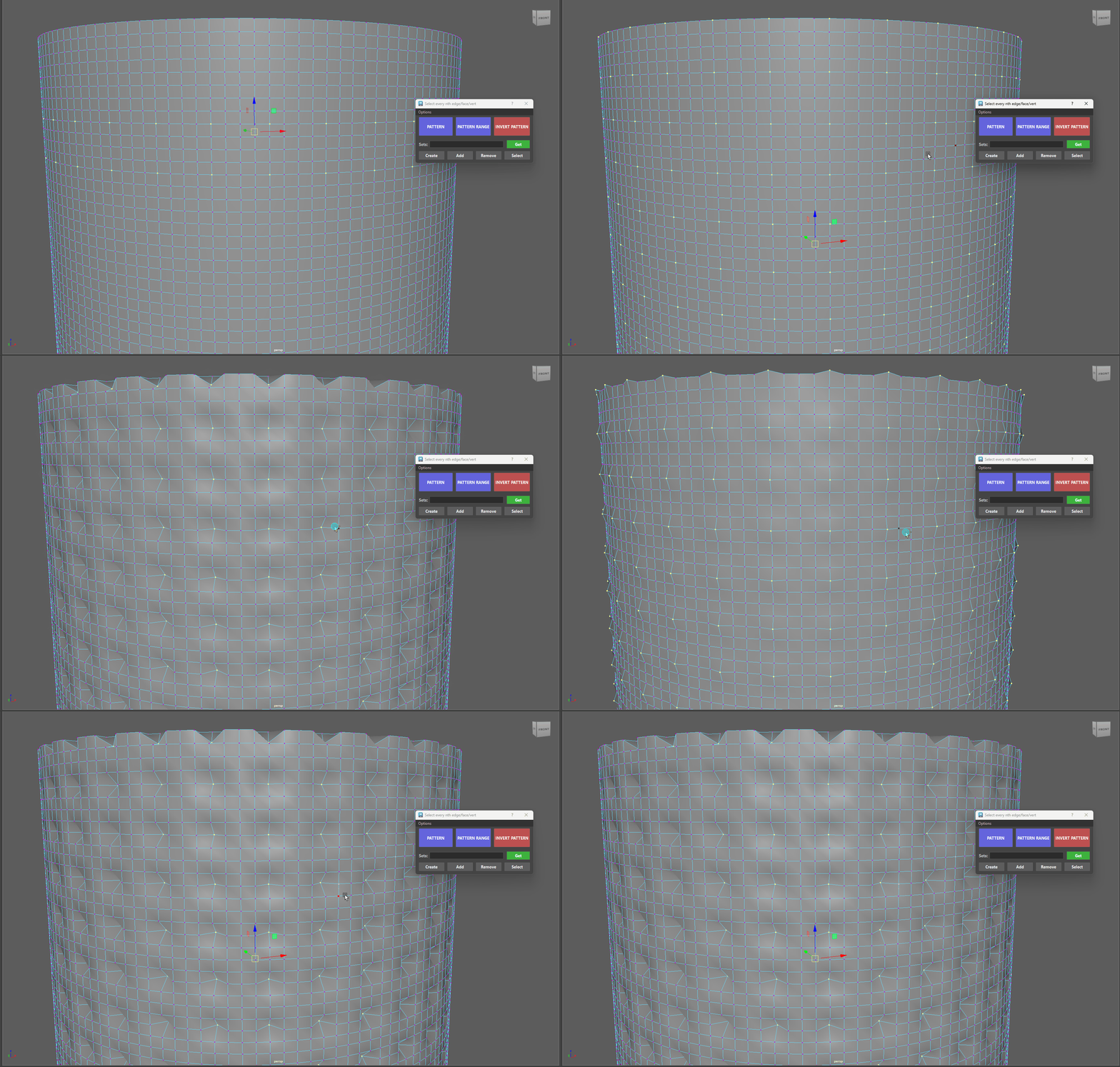
Multiple Pattern Selection on edges
More examples - Lateral Extensions
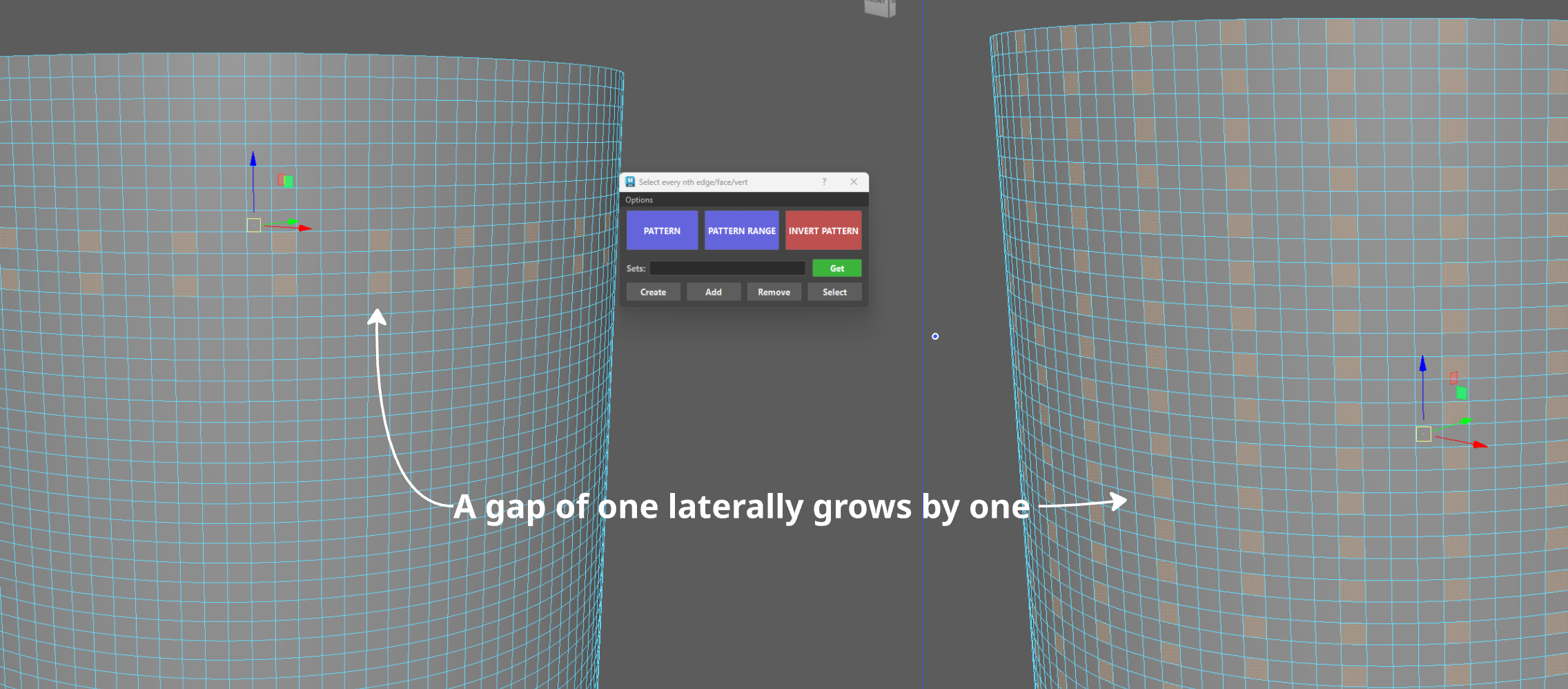
Info - Lateral Spacing Explained
-
When you trigger Lateral Extend using Ctrl + Click on the PATTERN button, the tool's backend engine runs a two-step topological analysis:
-
Loop Pairing: It identifies which components belong to the same primary loop and groups them into parallel pairs.
-
Adjacency & Lateral Step Calculation: It checks the topological distance (the gap) between the parallel loops themselves.
-
If the parallel rows are directly touching (0 gap), the tool flags an adjacency error.
- If there is a gap (e.g., selecting components on Row 1 and Row 3), the tool calculates that 2-row lateral stride and projects your longitudinal pattern across all subsequent parallel rows at that exact interval.
-
- Rule: The total count of selected components must always be an even number (2, 4, 6...).
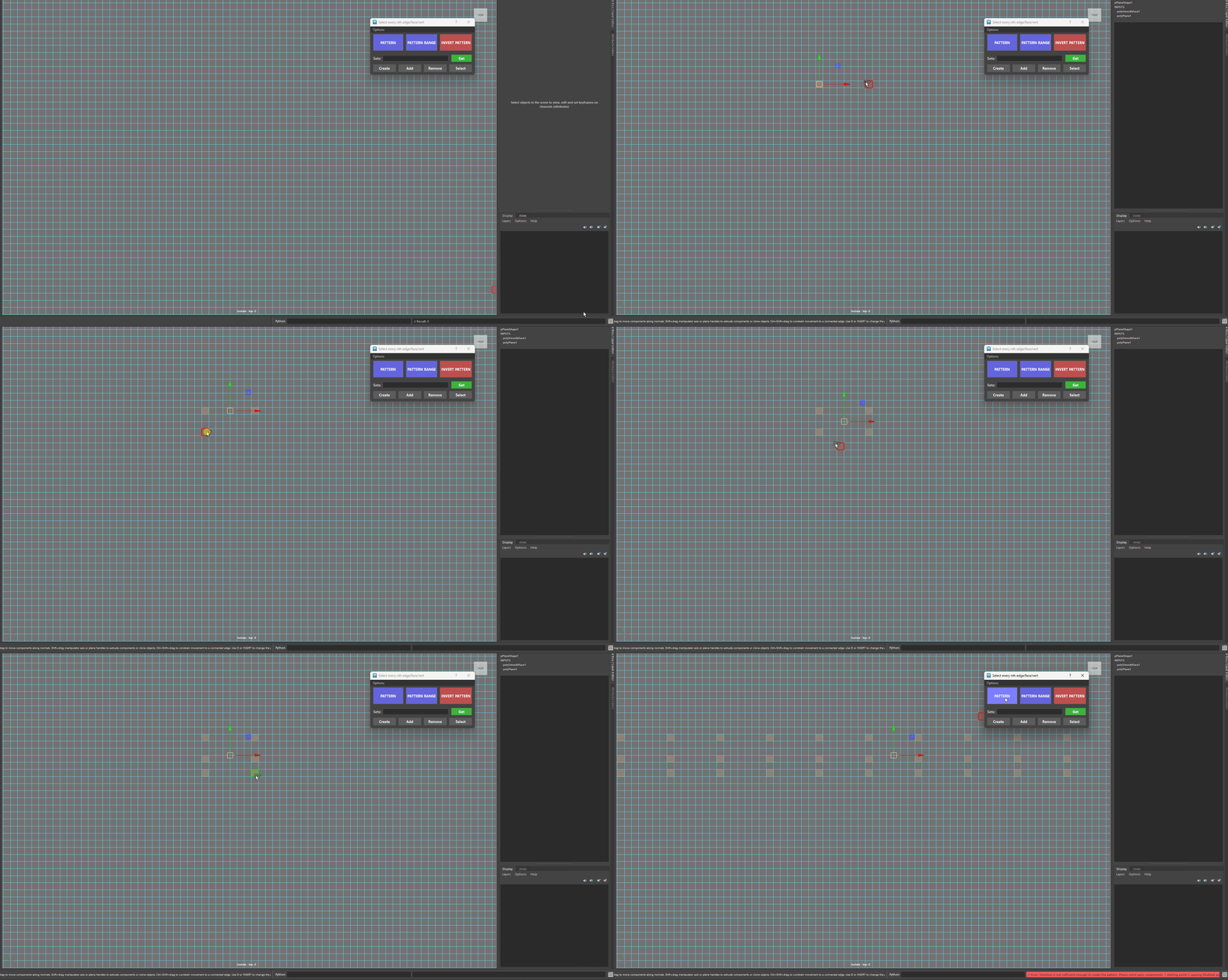
Failure - Lateral Extensions
You can't have more than 2 components selected on a loop that is going to be used laterally.
- The tool needs to pair up your selections into clean 2-item sets (one item on Row 1, one matching item on Row 3).
PATTERN RANGE
Restricts the repeating pattern to a specific segment or region of a loop instead of walking the entire mesh boundary.
Select 3 components within a single loop (or multiples of 3: 6, 9, 12, etc.).
-
1st Selection: Starting point.
-
2nd Selection: Defines the end of the range segment.
-
3rd Selection: Dictates the pattern stride—the gap between your 1st and 3rd selection dictates the spacing within that range.
-
Click PATTERN RANGE.
-
Rule: The total count of selected components must always be a multiple of three (3, 6, 9...).
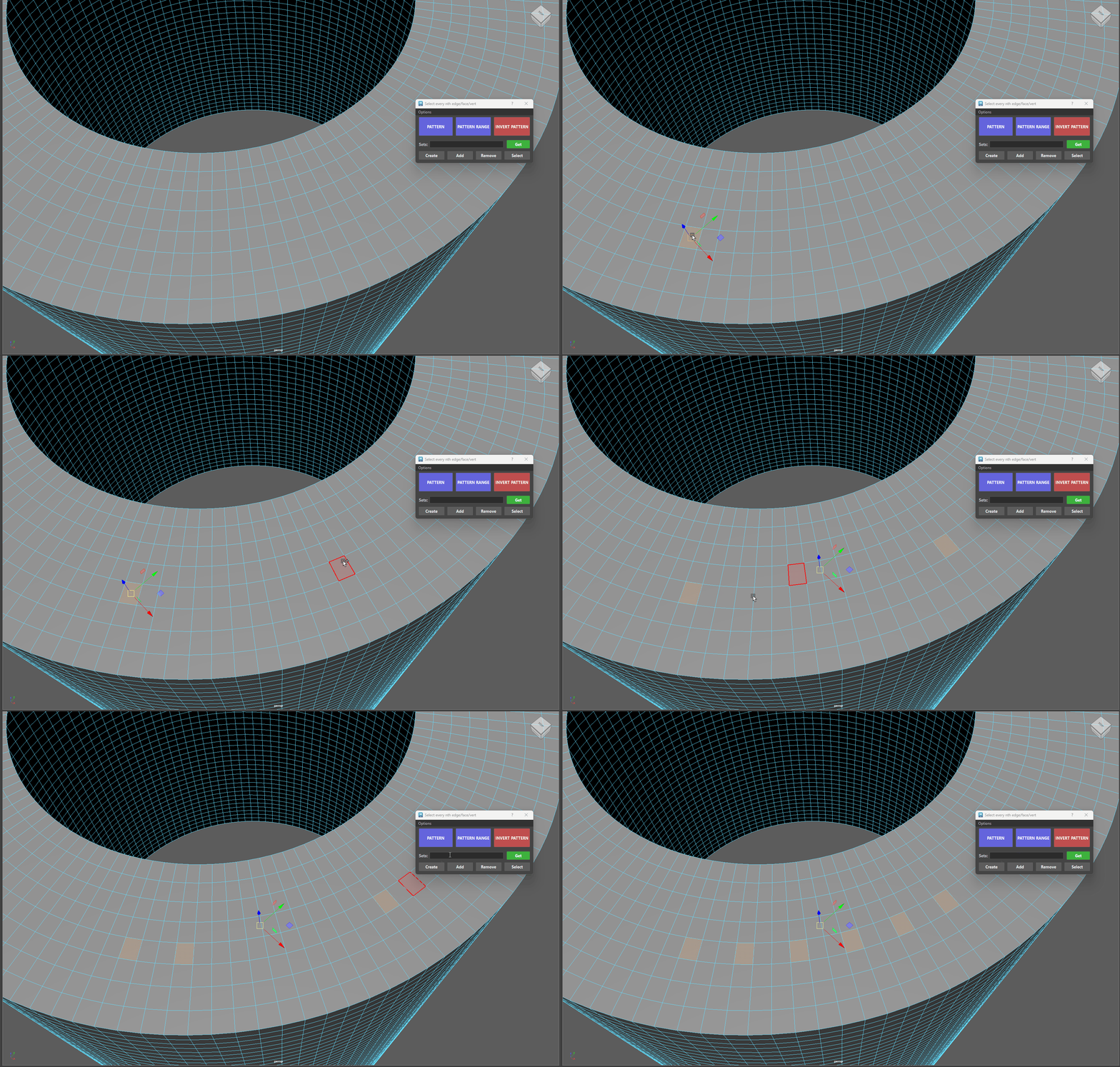
Selecting a pattern from a specified range
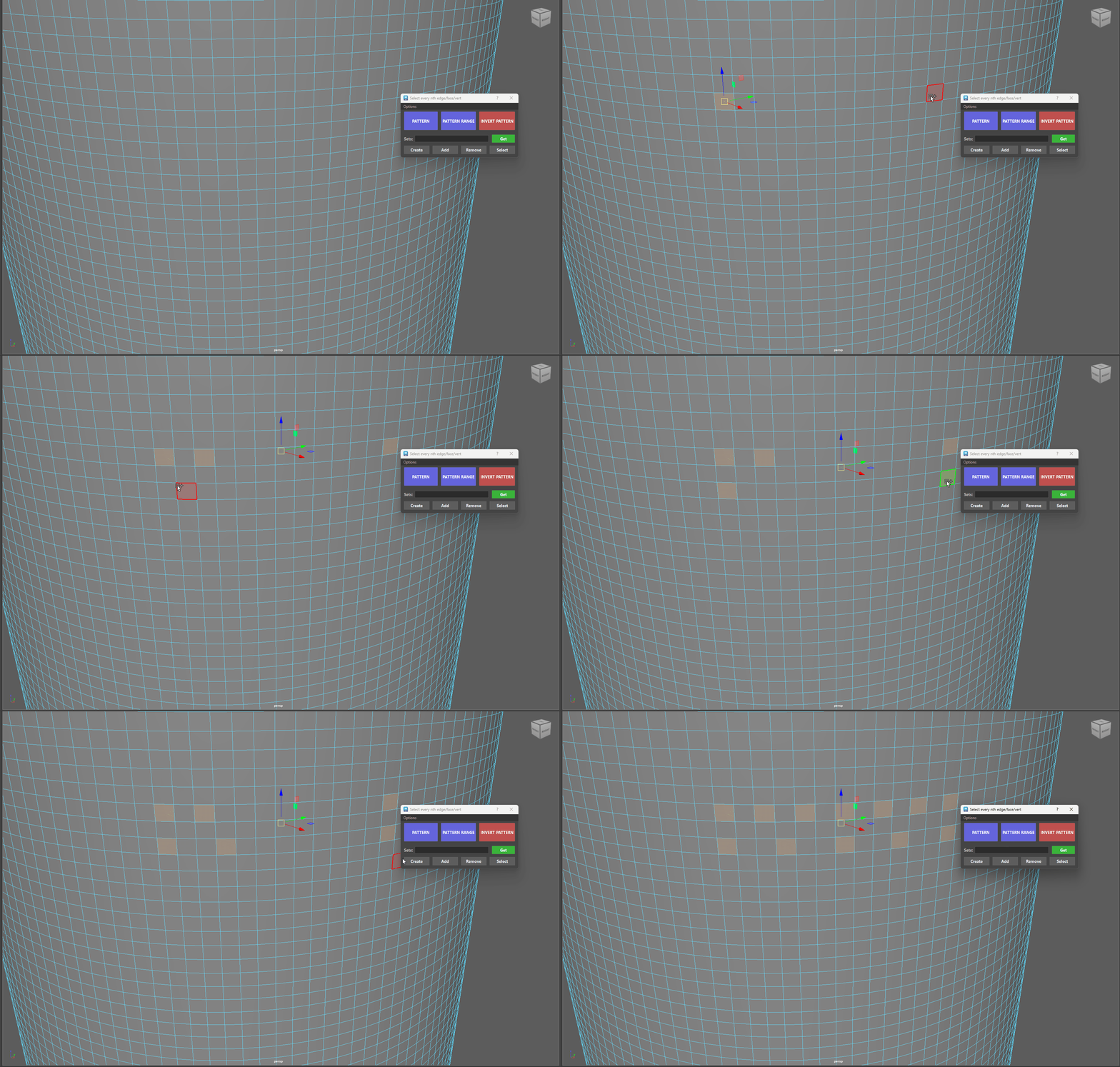
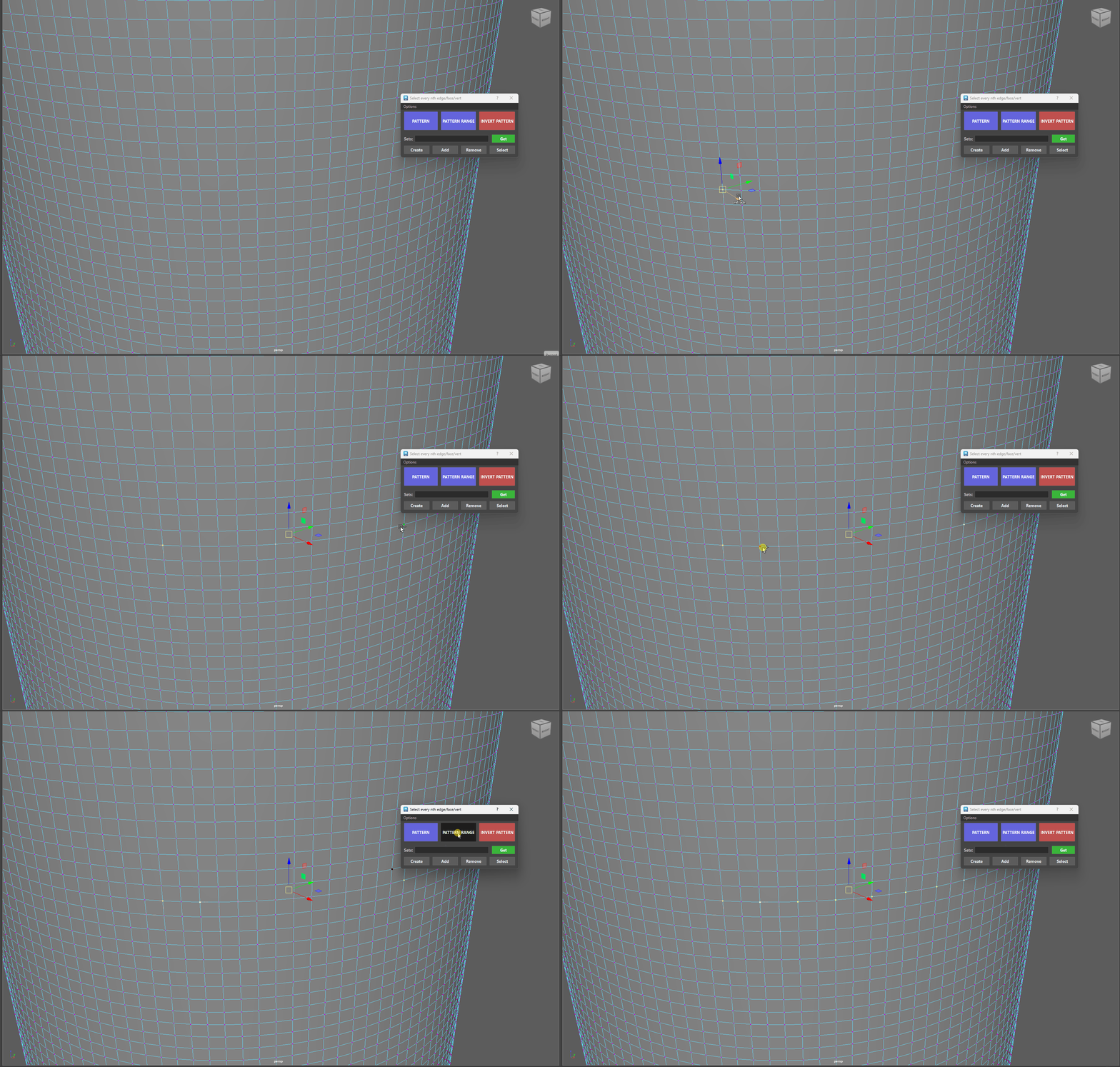
Pattern Range - More examples
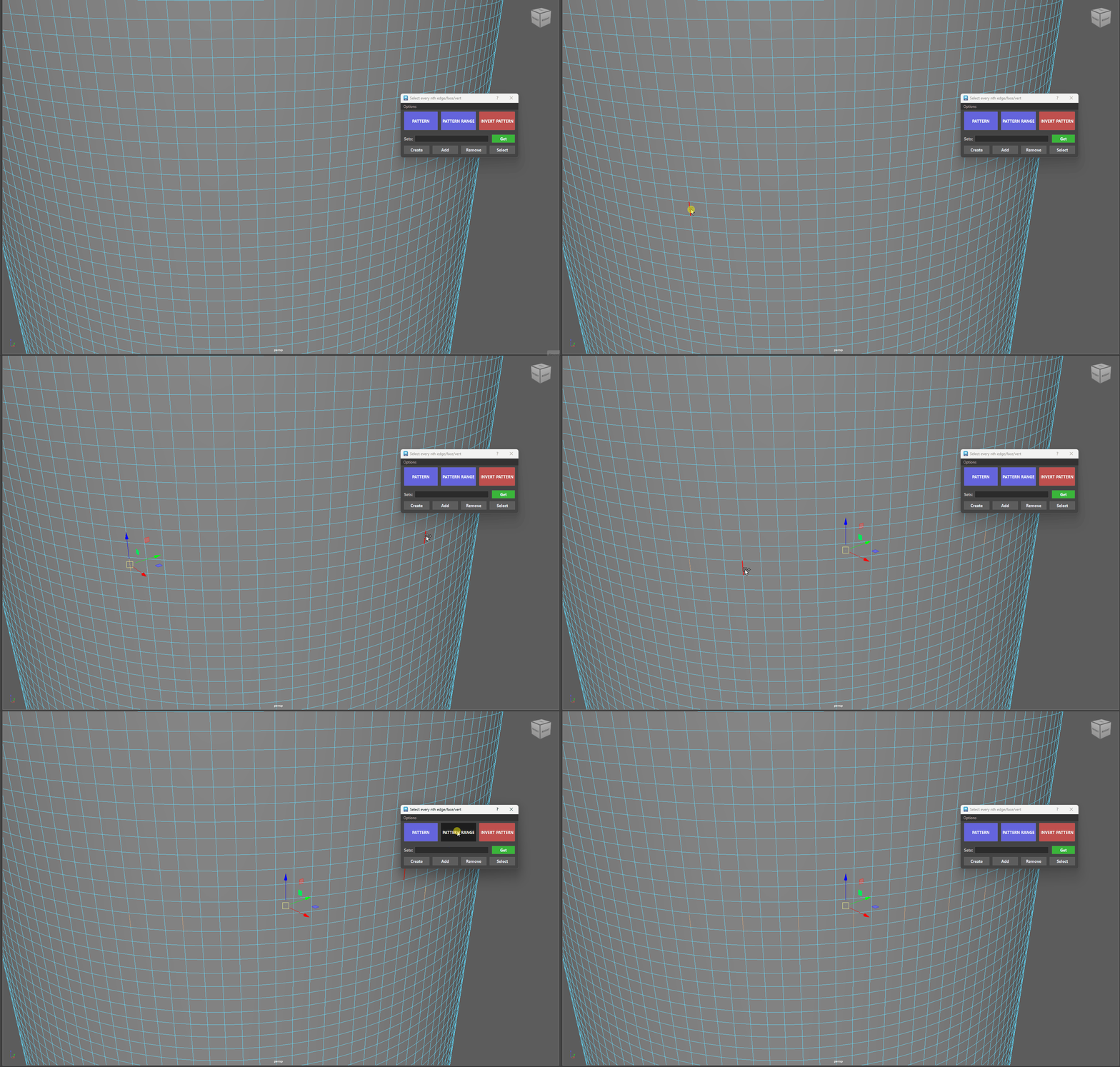
INVERT PATTERN
Whenever you create a pattern using PATTERN or PATTERN RANGE, the tool remembers two quick things behind the scenes:
-
The loop your selection sits on.
-
Which parts are currently highlighted.
When you click Invert Pattern, the tool simply looks at that path and swaps the selection: everything that was selected becomes unselected, and every skipped piece gets highlighted instead!
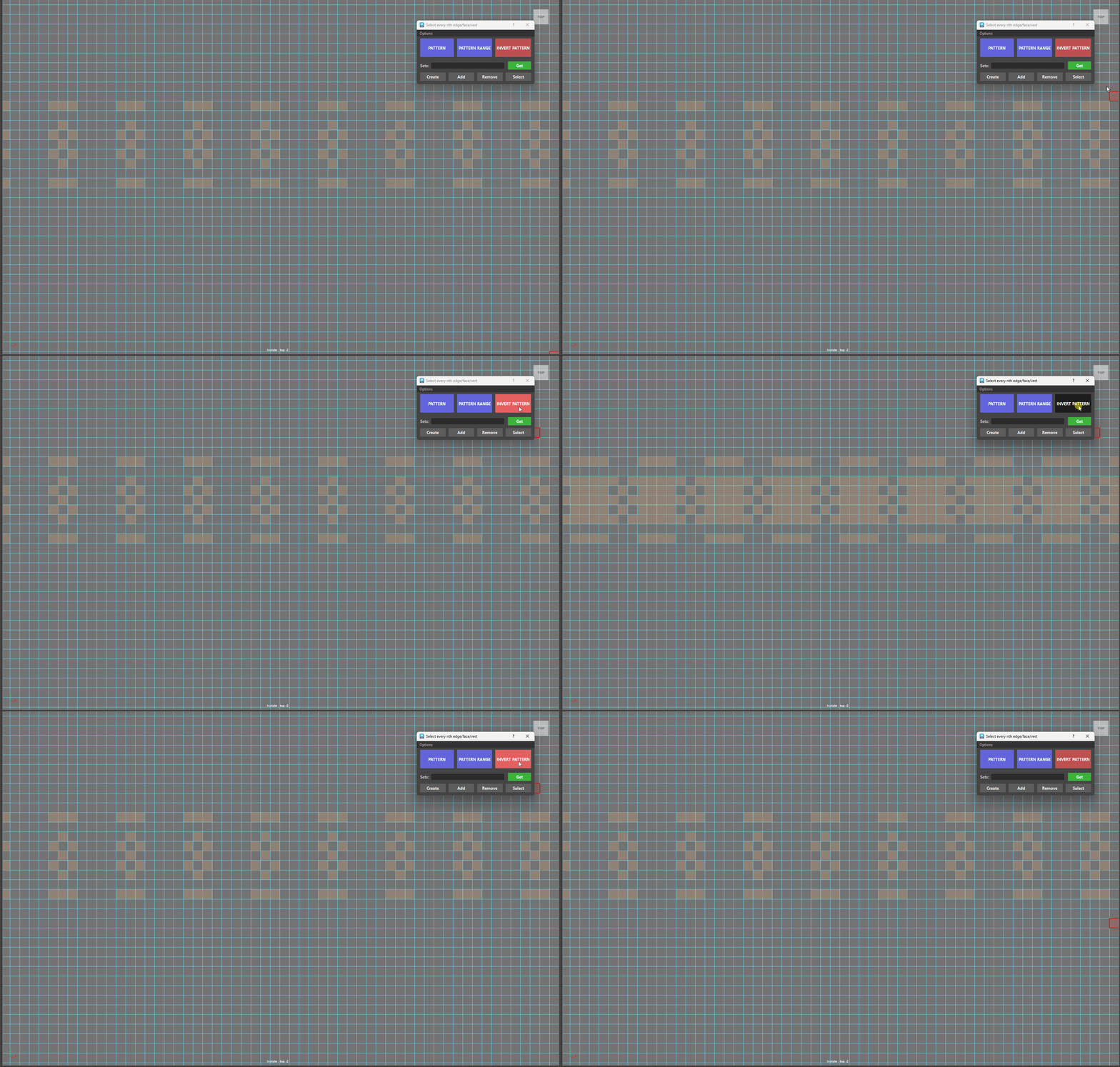
🛡️ Built-in Safety: If you edit your mesh or delete faces after making a pattern, the tool is smart enough to recognize the change and reset itself so it doesn't accidentally select the wrong parts.