Mirror Tool  

Overview
Maya Versions
Tested in Maya 2019-2027
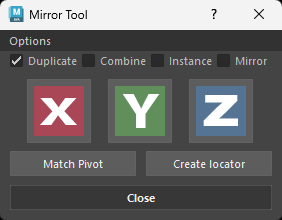
Mirror Tool helps you quickly mirror selected objects. A very useful tool for artists that want a quick and easy way to mirror their objects.
-
The tool features several main operations:
- Duplicate:
- Duplicates and mirrors selected objects.
- Combine:
- Duplicates mirrors and combines each selected object with its mirrored counterpart.
- Instance:
- Creates instances of your selected objects and mirrors them.
- Mirror:
- Creates a mirror operation for each selected object.
- Flip:
- When all checkboxes are unchecked the tool will just flip your selected objects on the axis you selected.
- Duplicate:
-
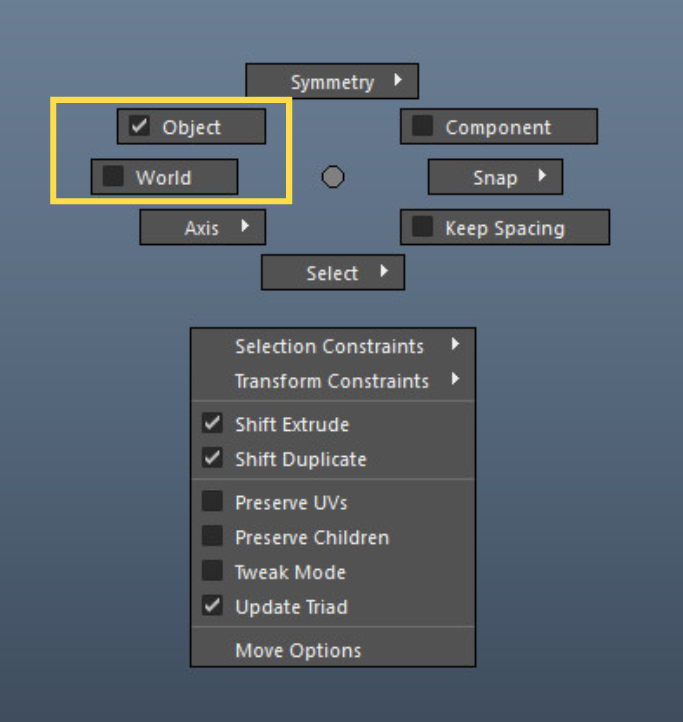
Use your manipulators Object / World alignment to mirror in Object or World space (either Move, Scale or Rotate will do).
- Hold down W (Move),E (Scale) or R (Rotate) and left click to choose the desired mode. The tool will then mirror accordingly.
- If any other mode is selected the tool will default to use Object.
Mirror Operation
- When the Mirror checkbox is checked the tool will perform a mirror operation.
-
Use the direction of your manipulator to decide which axis direction your tool should mirror from.
- Default axis direction is +.
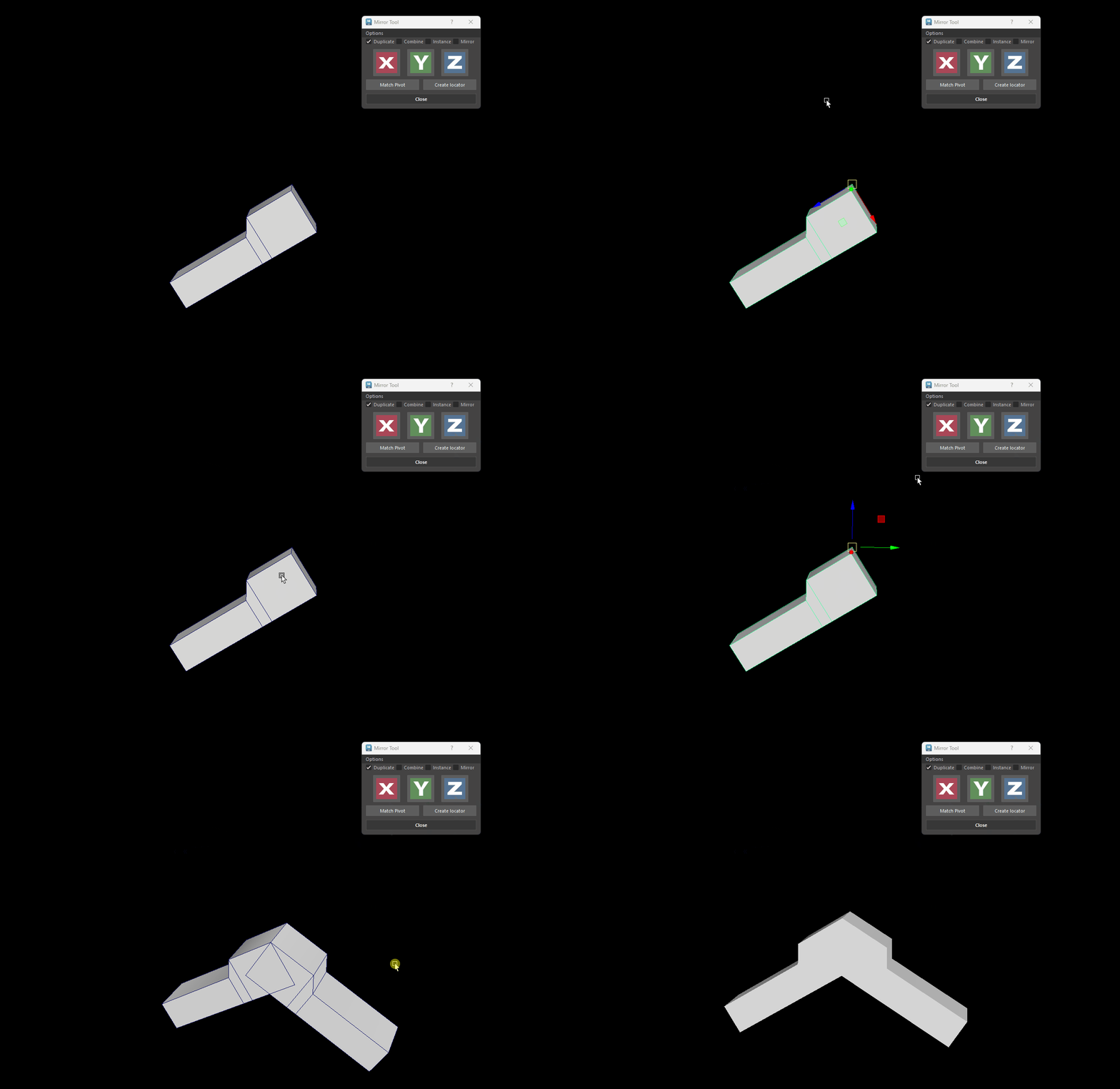
- If your manipulator on your selected object is pointing + X axis and you want the mirror operation to be performed in the negative X axis Ctrl Click the X icon to create the mirror in the (-) direction.
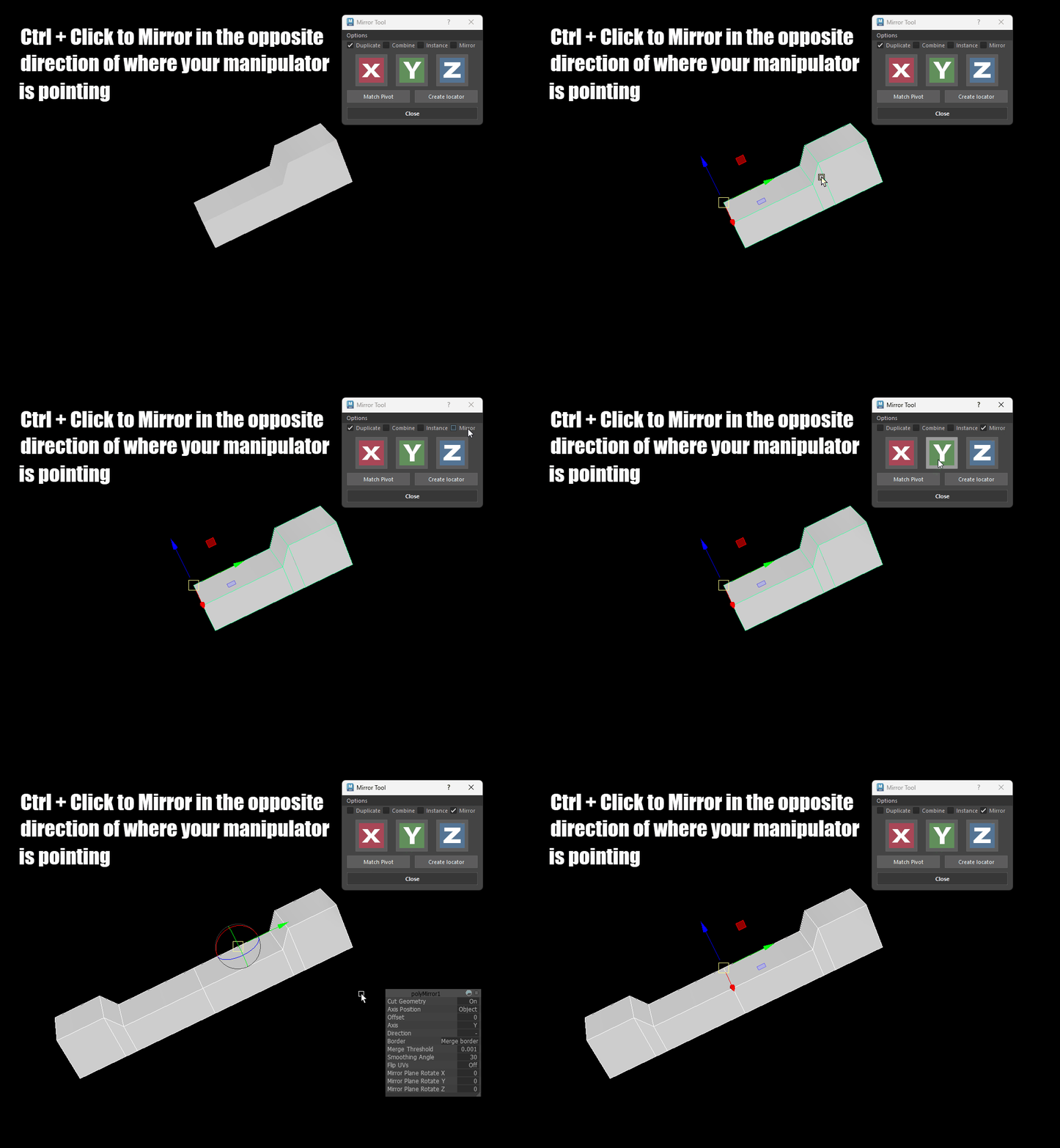
How to mirror in the opposite - direction. - Shift Click on any object with a mirror cut to change its (+ -) direction.
- If your manipulator mode is set to Object the tool will then create the Mirror/cut operation in Object mode.
-
If it's set to World the tool will then be aligned to Bounding box.
- If the Add Mirror cut Offset for World Space checkbox is checked (located in the options menu), then the tool will also calculate the offset needed for the mirror operation to start from the pivot point of the selected object.
- If you have a group selected the tool will apply the mirror operation on all its descendants.
Important Info - Mirroring in World Space
-
The tool Mirrors in Bounding Box Space but uses the offset to align the Mirror manipulator to your objects pivot point.
- This is done so the manipulator associated with the Mirror Plane, matches your pivot point location (Mirroring in World Space places the pivot point at world origin - which sometimes is not convenient when working).
-
It is important to know that switching direction using Maya's native pop up box will not work as expected (since it will calculate the bounding box without the offset) and its best to use the tool by Shift clicking on any of the X Y or Z icons.
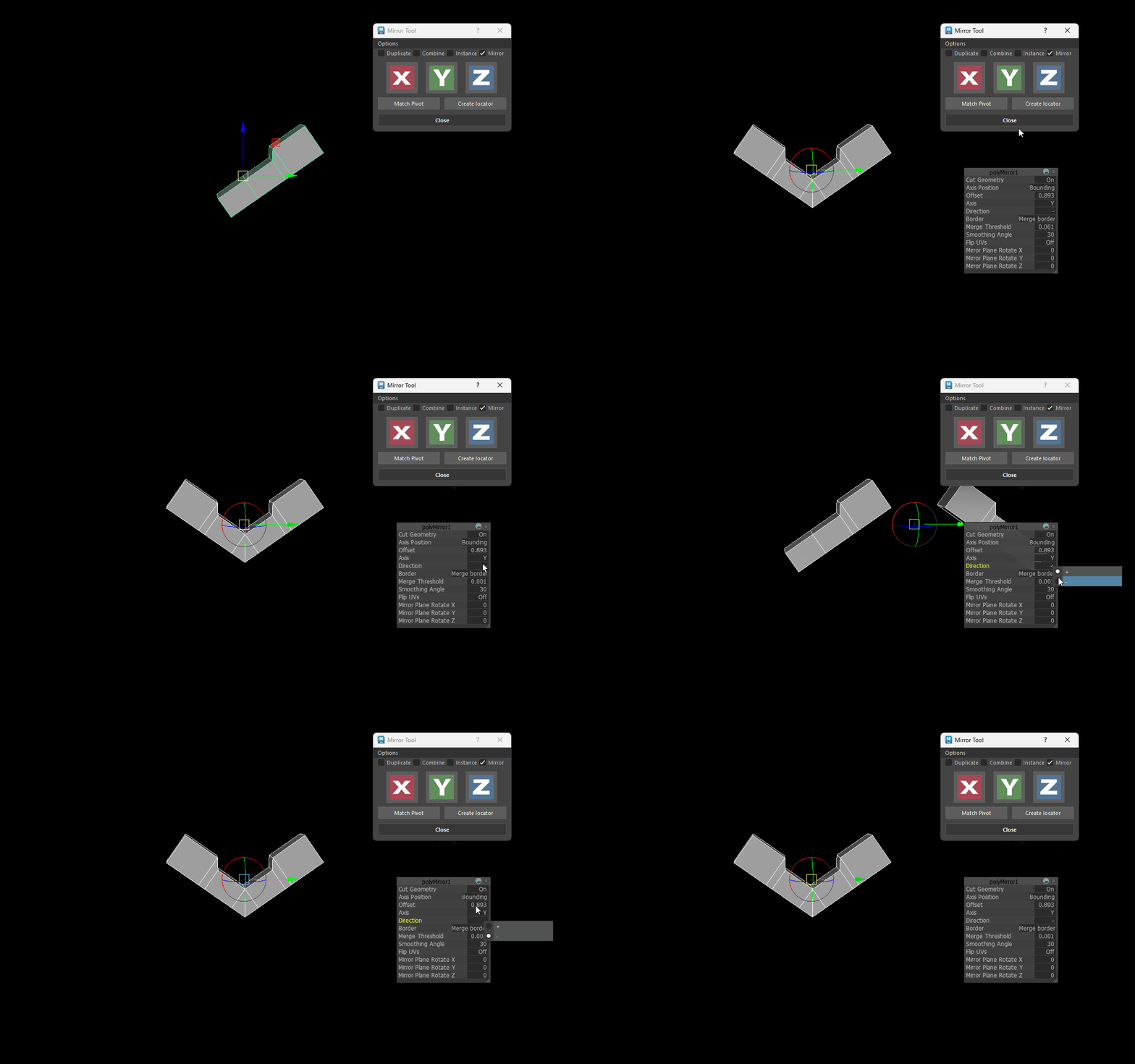
Changing direcions when mirroring. -
If you switch directions and then use Maya's undo operations then you will see your object be recalculated in BoundingBox space without the offset. That's because Maya does not apply an offset by default. In those cases it's best to undo to an initial state and mirror again or Shift click on any of the X Y or Z icons.
-
Please note this only works when your manipulator is set to World Space, Mirror and Add mirror cut offset for World space check boxes are checked (located in the options menu).
-
Not checking the Add mirror cut offset for World space will simply mirror your object in BoundingBox space.
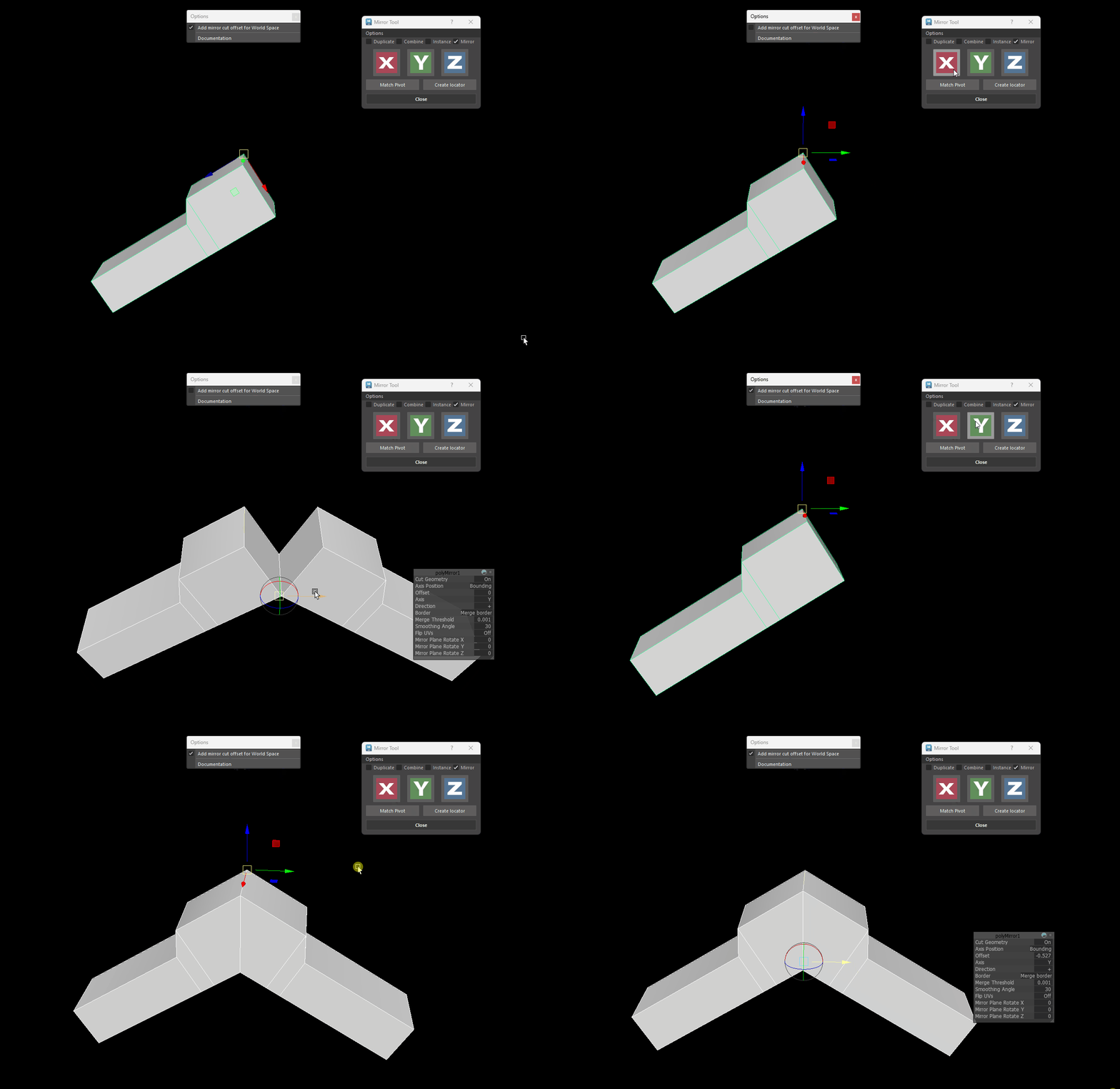
Mirroring with/without using the Add Mirror cut Offset for Wold Space checkbox. -
Mirror from last selected
- Hold down Ctrl (with multiple objects selected) and click to mirror from the pivot point of the last selected object.
- Last Object selected will be excluded from Mirroring.
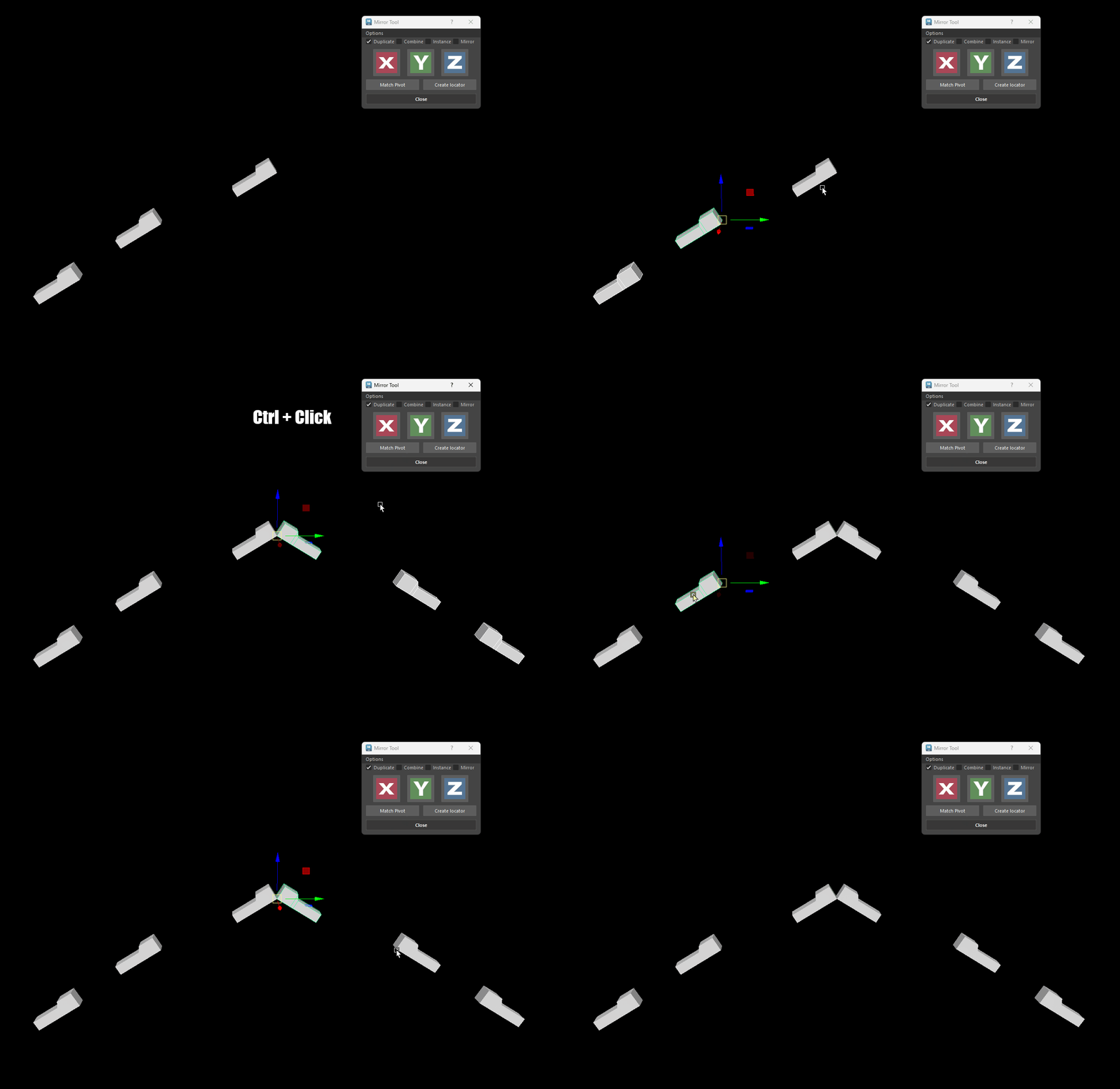
Info - Mirroring from last selected
-
Will work for all operations (Duplicate, Combine, Instance and Flip) except Mirror.
-
Mirror is not supported but if you really need something similar you could match the pivot point of all your objects with the last selected (using the Match Pivot button) and run the Mirror operation.
- For predictable results, ensure all objects share the same pivot point orientation.
Match Pivot
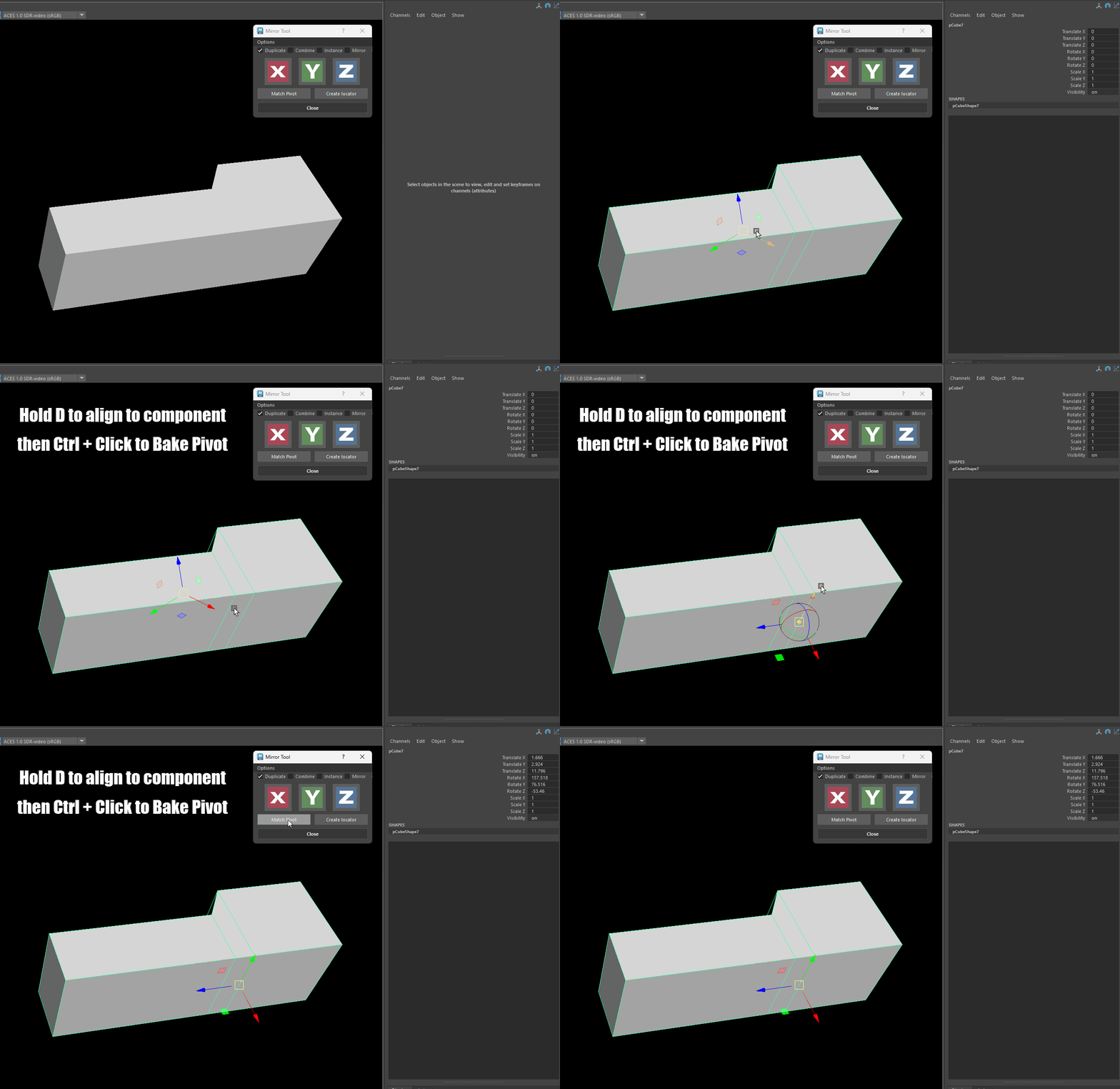
- Make a selection of different objects, the tool will match the pivot point (location/orientation) of all objects to the last one selected.
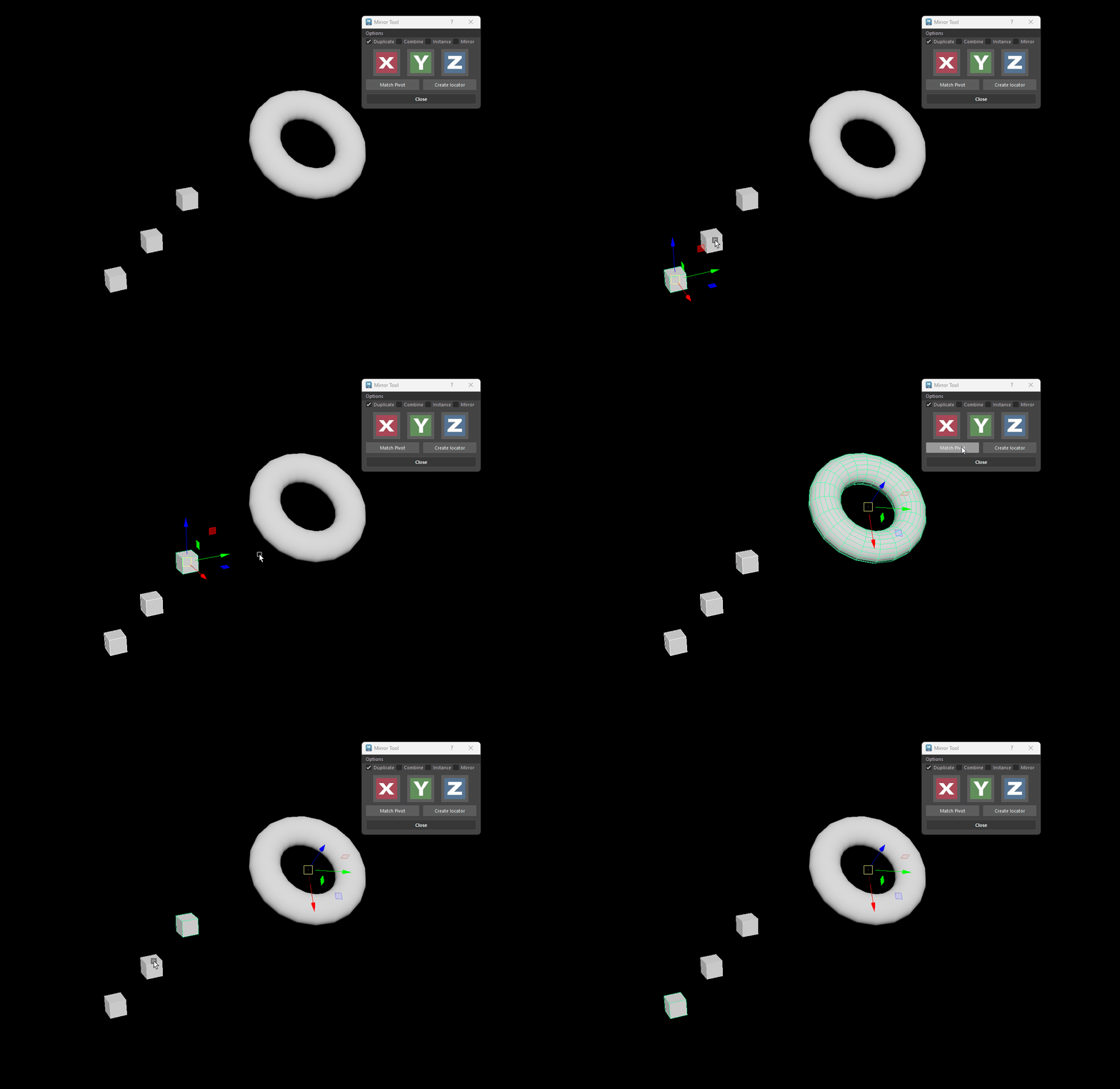
- Ctrl click the Match Pivot button to bake the pivot point of an object.
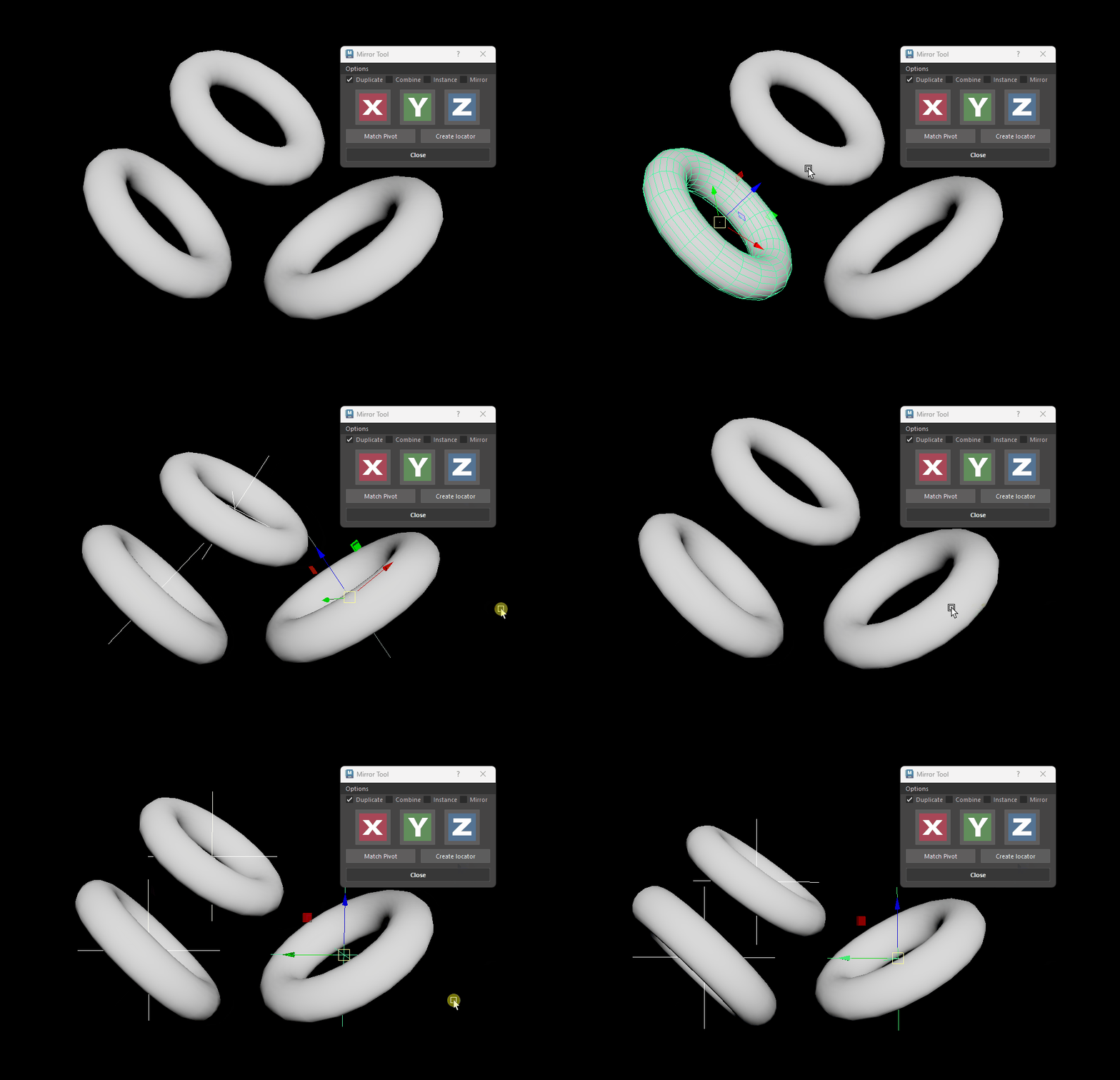
Create Locator
- Make a selection of different objects, the tool will match the pivot point location/orientation of all objects to the last one selected.
- Switch to different modes (Object/World) to get the desired orientation.
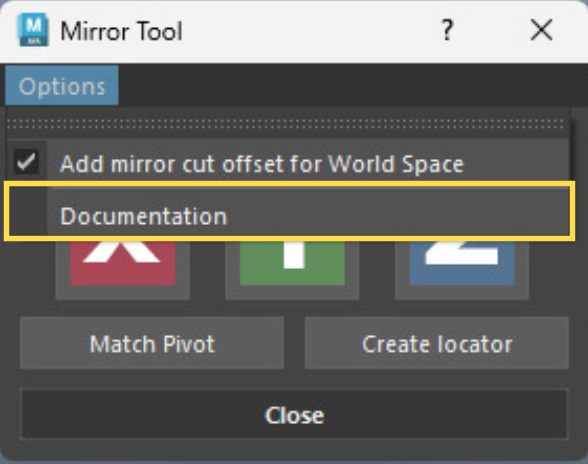
Documentation
Find the documentation page from the Options menu.
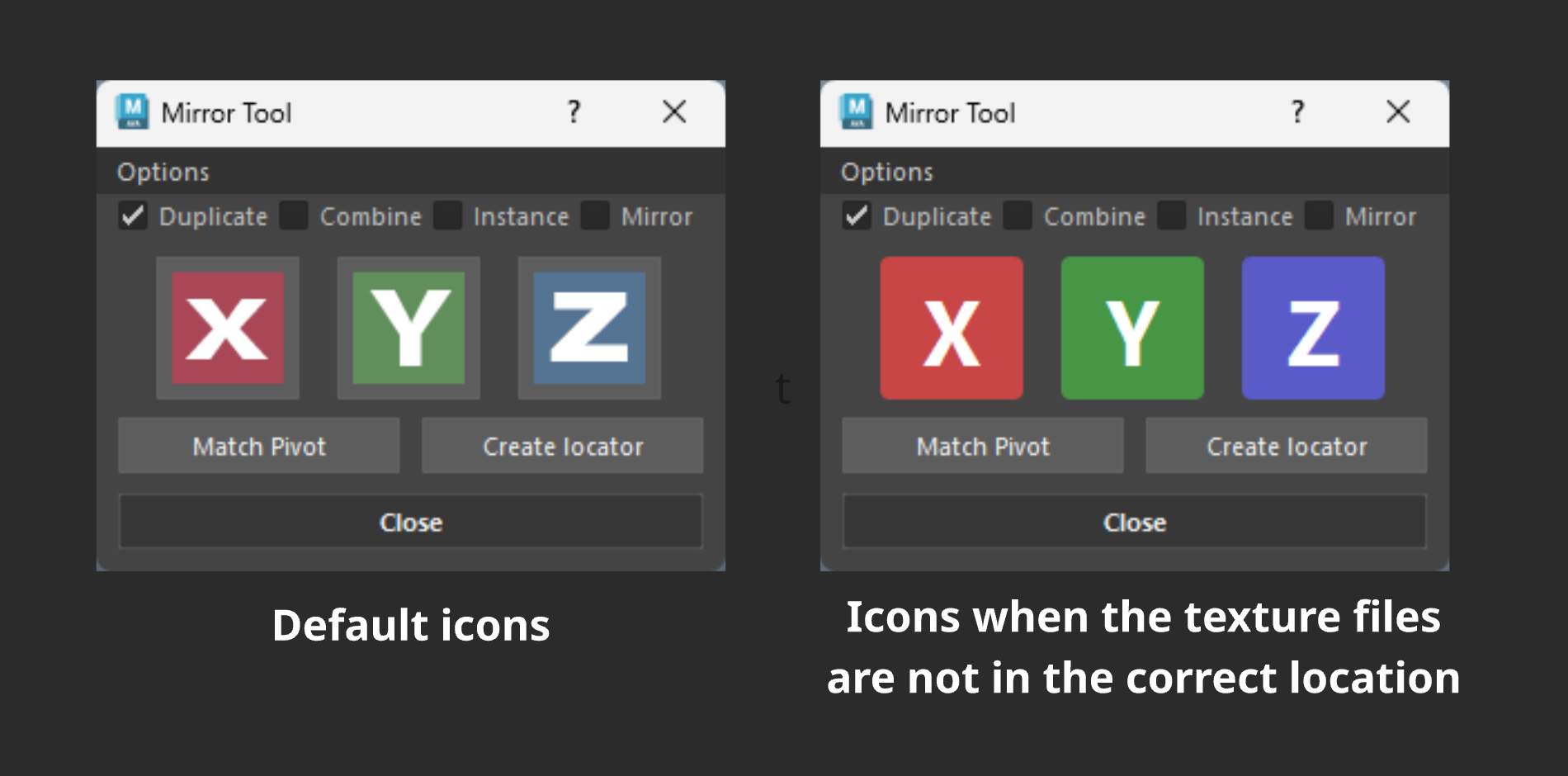
Info - Missing icons
- The tool has a build in safety in case you failed to copy paste the Mirror_Tool folder (that contains the tools icons) in the wrong location.